

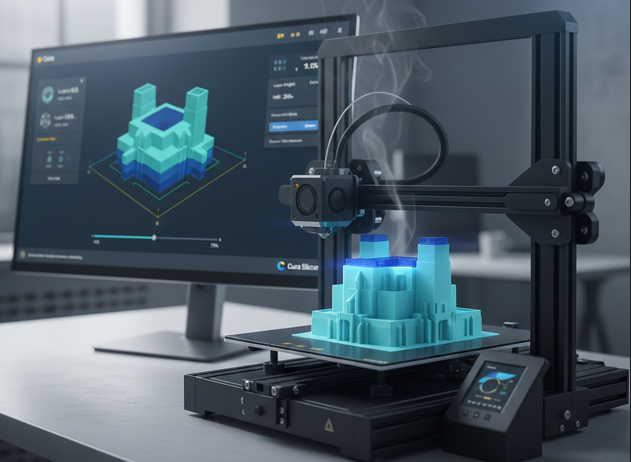
Getting cleaner walls, sharper corners, and more reliable first layers usually means one of two things: a lot of trial-and-error, or a slicer that quietly makes good decisions for you.
That’s where Orca Slicer stands out. It’s built to improve print quality in practical, day-to-day ways—without turning every model into a science project of endless settings.
Below is how it delivers better-looking parts while keeping your workflow fast, repeatable, and beginner-friendly enough to use daily.
Why better print quality often feels “hard”
Most print issues aren’t caused by one dramatic mistake—they’re caused by small mismatches between the model, the filament, and the machine’s real-world behavior. When your slicer makes it difficult to spot or control those mismatches, quality improvements feel complicated.
Common pain points include:
- Inconsistent first layers due to speed, cooling, or extrusion changes
- Ringing or ghosting from acceleration and jerk mismatches
- Stringing and blobs from temperature or retraction that’s “close, but not quite”
- Weak overhangs and bridges caused by cooling and line strategy
Quality gains that come from smart defaults (not more clicks)
One of the simplest ways a slicer improves results is by starting you closer to “correct.” Good profiles, sensible speed planning, and sane cooling behavior can eliminate a lot of tuning just to reach acceptable prints.
In practice, that means you spend less time hunting for the one setting that fixes a symptom and more time printing parts that look right the first time.
Profiles that don’t fight your hardware
Better prints come from profiles that match real printer behavior—especially around acceleration, pressure/flow behavior, and cooling limits. When a slicer’s presets are realistic, you’re less likely to see surface artifacts that come from pushing a machine beyond what it can handle cleanly.
Preview tools that make problems obvious early
Print quality improves when you can “see” the cause before you waste filament. Strong preview and visualization help you catch:
- Sudden speed jumps on small features
- Overhang regions that need more cooling or different orientation
- Support interfaces that may scar the underside
- Thin walls that won’t resolve with your nozzle width
Cleaner surfaces through better motion and extrusion planning
Even with perfect temperature and retraction, surface finish can fall apart if motion and extrusion aren’t coordinated. A slicer that manages how speed changes across corners, seams, and narrow features can noticeably reduce visual defects.
More consistent line behavior on corners and small geometry
When a part has lots of tiny segments, the printer is constantly speeding up and slowing down. If extrusion doesn’t stay stable during those transitions, you’ll see zits, waviness, or uneven gloss. Better planning smooths these transitions so material lays down more evenly.
Seam control that prioritizes appearance
Seams are inevitable, but they don’t have to dominate your print. Thoughtful seam placement options help hide or distribute the seam so it’s less noticeable—especially on curved or cosmetic surfaces.
Supports, bridges, and overhangs that look less “3D printed”
A lot of perceived print quality comes down to what happens underneath: bridging paths, support contact, and cooling strategy. Improving these areas often makes parts look cleaner without changing your CAD model.
To improve results without extra workflow steps, focus on:
- Choosing support styles that minimize scarring on visible faces
- Adjusting support interface density only when needed (not globally)
- Using preview to spot steep overhangs and rotate the part before printing
A workflow that stays simple: what to tweak (and what to leave alone)
If your goal is better quality without complexity, limit changes to a short list and iterate one variable at a time. A practical “minimal tuning” approach looks like this:
- Temperature: tune for your filament brand to reduce stringing and improve layer bonding
- Retraction: adjust only if you see persistent stringing or blobs
- First layer settings: slow down slightly and ensure consistent extrusion width
- Cooling: increase for bridges/overhangs, reduce for warp-prone materials
Everything else—advanced acceleration curves, exotic line widths, hyper-specific compensation—should be optional, not required for great prints.
Conclusion
Improving print quality doesn’t have to mean drowning in settings. When a slicer combines strong presets, clear previews, and smarter planning for motion and extrusion, you get better surfaces, cleaner seams, and more reliable overhangs with fewer retries.
The real win is momentum: a workflow where you make small, intentional tweaks only when the model demands it—while the slicer handles the details that usually complicate the path to consistently great-looking prints.