

Slow mobile browsing frustrates everyone. You tap a link, but the page hangs. Sometimes, websites display outdated content or show security warnings. Web pages fail to load even when your internet connection looks fine.
Many users blame their Wi-Fi or mobile data for these hiccups. However, the true culprit often sits inside your web browser. Google Chrome saves temporary network data to speed up your connection. Over time, this saved data becomes corrupted or outdated.
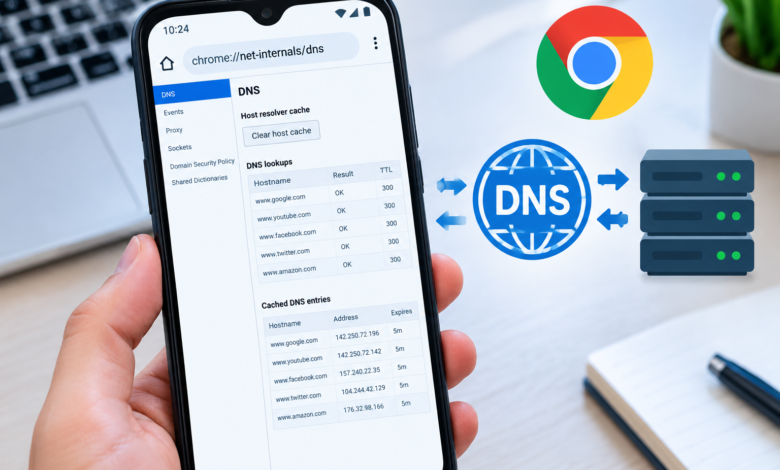
Searching for chrome.//net-internals/dns mobile is the first step toward fixing these connection issues. This hidden diagnostic screen lets you view and clear Chrome’s internal Domain Name System (DNS) cache. Flushing this data resolves loading errors and restores fast browsing on mobile devices.
What Is chrome.//net-internals/dns mobile?
The command chrome.//net-internals/dns mobile refers to a hidden developer page inside the mobile Google Chrome browser. Users frequently mistype this URL by putting slashes instead of colons or omitting the hash symbol.
The correct internal URL address is chrome://net-internals/#dns.
Incorrect typing:  chrome.//net-internals/dns mobile
Correct URL syntax: chrome://net-internals/#dns
This hidden control panel gives you direct access to Chrome’s internal networking functions. While regular Chrome settings let you clear history and cookies, they often leave internal network caches untouched. The net-internals page bypasses standard consumer settings, allowing you to manage low-level network operations.
How DNS Caching Works on Mobile Devices
Understanding DNS cache helps you see why clearing it resolves web problems. The Domain Name System (DNS) acts as the phonebook of the internet.
- Web addresses use human-friendly names like
example.com. - Servers use numerical IP addresses like
192.0.2.1. - DNS servers translate human domain names into IP addresses.
When you type a website address on your phone, Chrome looks up the IP address. To save time on future visits, Chrome saves that IP address in its local storage. This temporary storage is the DNS cache.
Why Mobile DNS Caching Fails
Mobile devices constantly switch between Wi-Fi networks and cellular data. These network changes often cause DNS issues:
- Server Migration: A website moves to a new host, but your phone still points to the old IP address.
- Network Switching: Moving from home Wi-Fi to cellular data leaves stale network paths in memory.
- Corrupted Entries: Network drops during page loading can save incomplete DNS entries.
- Stale Records: Website updates do not show up because Chrome loads outdated cached data.
Step-by-Step Guide: Accessing Chrome Net Internals on Mobile
Follow these steps to access and use the net-internals DNS feature on Android devices.
1.Open Google Chrome:Launch the official app.
Locate and open the standard Google Chrome app on your smartphone. Ensure you update Chrome to the latest version for full functionality.
2.Enter the Internal URL:Use correct syntax.
Tap the address bar at the top. Carefully type chrome://net-internals/#dns and press enter. Do not use chrome.// with slashes.
3.Select the DNS Tab:Navigate the menu.
Look at the left-hand menu pane. Tap the DNS option if the page does not open to it automatically.
4.Clear Host Cache:Flush saved records.
Find the Clear host cache button on the right side of the screen. Tap it once. The page will not show a huge confirmation popup, but the action runs instantly.
5.Flush Socket Pools:Complete the network reset.
Type chrome://net-internals/#sockets into the address bar. Tap Flush socket pools to close active connections and force fresh network handshakes.
Net-Internals vs. Standard Clear Browsing Data
Many users confuse clearing browser history with clearing DNS cache. These two processes target completely different systems.
| Feature | Standard “Clear Browsing Data” | chrome://net-internals/#dns |
| Target Data | Images, cookies, site history, saved passwords | Host IP mappings and active socket pools |
| Website Logins | Logs you out of active accounts | Keeps you logged into all websites |
| Network Impact | Clears local files; keeps IP routes intact | Forces fresh DNS lookups for all websites |
| Fixes Page Load Errors | Fixes display glitches and outdated layouts | Fixes “Server Not Found” and ERR_NAME_NOT_RESOLVED errors |
| User Access | Found easily in standard Chrome settings | Hidden internal developer page |
When Should You Clear Your Mobile DNS Cache?
You do not need to clear your DNS cache every day. Use chrome://net-internals/#dns when you encounter specific network errors.
Common Network Error Codes
ERR_NAME_NOT_RESOLVED: Chrome cannot find the IP address for the domain name.ERR_CONNECTION_REFUSED: The browser is attempting to connect to an outdated server IP.DNS_PROBE_FINISHED_NXDOMAIN: The domain lookup failed, often due to bad cache entries.ERR_TIMED_OUT: The request took too long because Chrome routed traffic through an offline IP.
Practical Scenarios
- Website Redesigns: You know a site updated its layout, but your mobile screen shows the old version.
- Domain Transfers: A business owner updates web hosting, but their mobile phone continues loading the old host.
- Public Wi-Fi Changes: You switch from mobile data to hotel Wi-Fi and pages suddenly stop loading.
- Security Redirections: A site updated its SSL certificate, but Chrome flags it as unsafe due to cached routes.
Advanced Troubleshooting for Mobile Chrome Issues
If clearing the internal DNS cache does not fix your connection problems, try these additional fixes:
1. Airplane Mode Refresh
Toggling Airplane Mode forces your phone’s cellular modem and Wi-Fi chip to disconnect and re-establish network leases.
- Swipe down to open Quick Settings.
- Turn Airplane Mode ON.
- Wait 15 seconds.
- Turn Airplane Mode OFF.
2. Change Chrome Private DNS Settings
Android lets you route DNS requests through secure providers like Cloudflare or Google.
- Open Android Settings.
- Go to Network & Internet (or Connections).
- Select Private DNS.
- Choose Private DNS provider hostname.
- Enter
one.one.one.one(Cloudflare) ordns.google(Google). - Tap Save.
3. Clear Chrome App System Cache
Removing temporary app data fixes stubborn browser glitches without deleting your personal files.
- Open Android Settings -> Apps.
- Select Chrome.
- Tap Storage & Cache.
- Tap Clear Cache (Do not tap Clear Data unless you want to reset the entire app).
Summary Checklist for Fixing Chrome Mobile DNS Errors
When websites fail to load on your smartphone, run through this quick checklist:
- [ ] Verify the URL format uses
chrome://instead ofchrome.//. - [ ] Open
chrome://net-internals/#dnsand tap Clear host cache. - [ ] Open
chrome://net-internals/#socketsand tap Flush socket pools. - [ ] Toggle Airplane Mode for 15 seconds to reset phone radio connections.
- [ ] Restart the Google Chrome app to apply all changes completely.
By maintaining a clean DNS cache, you maintain high browsing speeds, avoid page loading errors, and ensure your mobile browser always points to the latest web servers.
Slow mobile browsing frustrates everyone. You tap a link, but the page hangs. Sometimes, websites display outdated content or show security warnings. Web pages fail to load even when your internet connection looks fine.
Many users blame their Wi-Fi or mobile data for these hiccups. However, the true culprit often sits inside your web browser. Google Chrome saves temporary network data to speed up your connection. Over time, this saved data becomes corrupted or outdated.
Searching for chrome.//net-internals/dns mobile is the first step toward fixing these connection issues. This hidden diagnostic screen lets you view and clear Chrome’s internal Domain Name System (DNS) cache. Flushing this data resolves loading errors and restores fast browsing on mobile devices.
What Is chrome.//net-internals/dns mobile?
The command chrome.//net-internals/dns mobile refers to a hidden developer page inside the mobile Google Chrome browser. Users frequently mistype this URL by putting slashes instead of colons or omitting the hash symbol.
The correct internal URL address is chrome://net-internals/#dns.
Incorrect typing:  chrome.//net-internals/dns mobile
Correct URL syntax: chrome://net-internals/#dns
This hidden control panel gives you direct access to Chrome’s internal networking functions. While regular Chrome settings let you clear history and cookies, they often leave internal network caches untouched. The net-internals page bypasses standard consumer settings, allowing you to manage low-level network operations.
How DNS Caching Works on Mobile Devices
Understanding DNS cache helps you see why clearing it resolves web problems. The Domain Name System (DNS) acts as the phonebook of the internet.
- Web addresses use human-friendly names like
example.com. - Servers use numerical IP addresses like
192.0.2.1. - DNS servers translate human domain names into IP addresses.
When you type a website address on your phone, Chrome looks up the IP address. To save time on future visits, Chrome saves that IP address in its local storage. This temporary storage is the DNS cache.
Why Mobile DNS Caching Fails
Mobile devices constantly switch between Wi-Fi networks and cellular data. These network changes often cause DNS issues:
- Server Migration: A website moves to a new host, but your phone still points to the old IP address.
- Network Switching: Moving from home Wi-Fi to cellular data leaves stale network paths in memory.
- Corrupted Entries: Network drops during page loading can save incomplete DNS entries.
- Stale Records: Website updates do not show up because Chrome loads outdated cached data.
Step-by-Step Guide: Accessing Chrome Net Internals on Mobile
Follow these steps to access and use the net-internals DNS feature on Android devices.
1.Open Google Chrome:Launch the official app.
Locate and open the standard Google Chrome app on your smartphone. Ensure you update Chrome to the latest version for full functionality.
2.Enter the Internal URL:Use correct syntax.
Tap the address bar at the top. Carefully type chrome://net-internals/#dns and press enter. Do not use chrome.// with slashes.
3.Select the DNS Tab:Navigate the menu.
Look at the left-hand menu pane. Tap the DNS option if the page does not open to it automatically.
4.Clear Host Cache:Flush saved records.
Find the Clear host cache button on the right side of the screen. Tap it once. The page will not show a huge confirmation popup, but the action runs instantly.
5.Flush Socket Pools:Complete the network reset.
Type chrome://net-internals/#sockets into the address bar. Tap Flush socket pools to close active connections and force fresh network handshakes.
Net-Internals vs. Standard Clear Browsing Data
Many users confuse clearing browser history with clearing DNS cache. These two processes target completely different systems.
| Feature | Standard “Clear Browsing Data” | chrome://net-internals/#dns |
| Target Data | Images, cookies, site history, saved passwords | Host IP mappings and active socket pools |
| Website Logins | Logs you out of active accounts | Keeps you logged into all websites |
| Network Impact | Clears local files; keeps IP routes intact | Forces fresh DNS lookups for all websites |
| Fixes Page Load Errors | Fixes display glitches and outdated layouts | Fixes “Server Not Found” and ERR_NAME_NOT_RESOLVED errors |
| User Access | Found easily in standard Chrome settings | Hidden internal developer page |
When Should You Clear Your Mobile DNS Cache?
You do not need to clear your DNS cache every day. Use chrome://net-internals/#dns when you encounter specific network errors.
Common Network Error Codes
ERR_NAME_NOT_RESOLVED: Chrome cannot find the IP address for the domain name.ERR_CONNECTION_REFUSED: The browser is attempting to connect to an outdated server IP.DNS_PROBE_FINISHED_NXDOMAIN: The domain lookup failed, often due to bad cache entries.ERR_TIMED_OUT: The request took too long because Chrome routed traffic through an offline IP.
Practical Scenarios
- Website Redesigns: You know a site updated its layout, but your mobile screen shows the old version.
- Domain Transfers: A business owner updates web hosting, but their mobile phone continues loading the old host.
- Public Wi-Fi Changes: You switch from mobile data to hotel Wi-Fi and pages suddenly stop loading.
- Security Redirections: A site updated its SSL certificate, but Chrome flags it as unsafe due to cached routes.
Advanced Troubleshooting for Mobile Chrome Issues
If clearing the internal DNS cache does not fix your connection problems, try these additional fixes:
1. Airplane Mode Refresh
Toggling Airplane Mode forces your phone’s cellular modem and Wi-Fi chip to disconnect and re-establish network leases.
- Swipe down to open Quick Settings.
- Turn Airplane Mode ON.
- Wait 15 seconds.
- Turn Airplane Mode OFF.
2. Change Chrome Private DNS Settings
Android lets you route DNS requests through secure providers like Cloudflare or Google.
- Open Android Settings.
- Go to Network & Internet (or Connections).
- Select Private DNS.
- Choose Private DNS provider hostname.
- Enter
one.one.one.one(Cloudflare) ordns.google(Google). - Tap Save.
3. Clear Chrome App System Cache
Removing temporary app data fixes stubborn browser glitches without deleting your personal files.
- Open Android Settings -> Apps.
- Select Chrome.
- Tap Storage & Cache.
- Tap Clear Cache (Do not tap Clear Data unless you want to reset the entire app).
Summary Checklist for Fixing Chrome Mobile DNS Errors
When websites fail to load on your smartphone, run through this quick checklist:
- [ ] Verify the URL format uses
chrome://instead ofchrome.//. - [ ] Open
chrome://net-internals/#dnsand tap Clear host cache. - [ ] Open
chrome://net-internals/#socketsand tap Flush socket pools. - [ ] Toggle Airplane Mode for 15 seconds to reset phone radio connections.
- [ ] Restart the Google Chrome app to apply all changes completely.
By maintaining a clean DNS cache, you maintain high browsing speeds, avoid page loading errors, and ensure your mobile browser always points to the latest web servers.